

MSGtoEML and EMLtoMSG with E-Mail Converter Professional
E-Mail Converter Professional converts saved Outlook MSG files into EML files directly on a Windows PC. The program works with single messages, complete folders including subfolders, and repeatable conversion jobs through the Command Line Interface.
Email files remain on the local computer during processing. No upload to an online converter is required. The reverse direction from EML to MSG is included when saved messages have to be placed back into an Outlook-related archive.
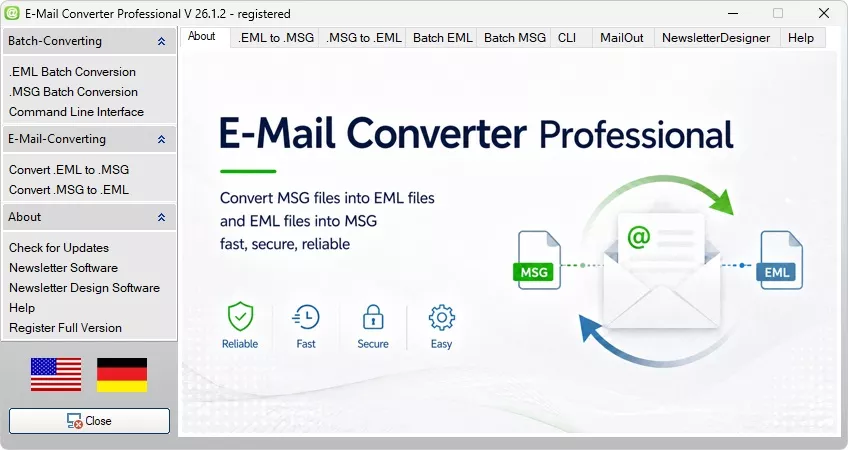
E-Mail Converter Professional provides MSGtoEML and EMLtoMSG conversion in one Windows application.
During conversion, the software keeps message body, subject, sender, recipients, date information, and attachments available for later use. MSG files are commonly saved or exported from Microsoft Outlook. EML files can be opened or imported by many mail clients, archive systems, document workflows, and migration tools. Converting MSG to EML therefore makes Outlook messages usable outside an Outlook-only environment.
Our MSG to EML Converter is designed for sharing, backup, migration, and structured handling of saved Outlook messages. The integrated EMLtoMSG Converter covers the reverse direction when EML files have to be stored again as MSG files.
Convert email files between MSG and EML
MSG and EML are file formats for individual saved email messages. Such files often come from customer correspondence, project folders, support cases, invoices, legal records, old backups, or exported Outlook mail. If a target system requires EML while the available data is stored as MSG, E-Mail Converter Professional performs the format change locally.Before starting, you select the source file or source folder, the output folder, and the target format. For a few messages, single-file conversion is usually enough. For archive folders, batch processing saves manual work and reduces the risk of missed files. MSG to EML is the main direction for import preparation and cross-program use. EML to MSG remains available for Outlook-related filing structures and mixed email collections.
MSG and EML as file formats for email messages
An MSG file stores one Outlook message with subject, sender, recipient, date, body text, and attachments. These files are created when emails are saved from Outlook to the hard drive or exported from an archive. The EML format is useful when messages need to be opened, imported, indexed, or archived by software outside Outlook.EML files store individual messages independently from a complete mailbox. This makes them practical for transferring selected emails, preparing imports, or keeping single records in a file-based archive. MSGtoEML is the relevant conversion direction when Outlook messages must leave an Outlook-bound format. EMLtoMSG is used when the destination expects MSG files again.
MSGtoEML for individual files
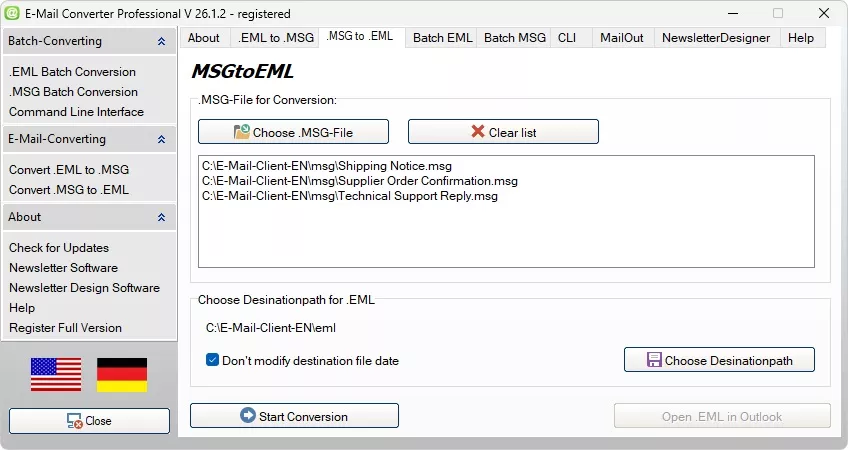
Single-file conversion is useful when only selected Outlook messages need to become EML files. Typical examples are a customer email, a saved invoice, a support case, or project correspondence that should be stored separately. You choose the MSG file and define the folder in which the generated EML file will be written.
This approach gives direct control over every processed message. Before conversion, you know exactly which Outlook file is used. After conversion, the result can be opened from the target folder and checked immediately. This is practical for individual records where a complete folder run would be unnecessary.
Select MSG files and convert them to EML
First, the required MSG file is selected as the source. Then the storage location for the new EML file is defined. This workflow is suitable when individual Outlook messages need to be extracted from an archive and kept as standalone files for later access, review, or transfer.A clear folder structure by project, customer, case, or time period makes the generated EML files easier to find. A short test with a representative message helps verify attachments, header data, special characters, and display behavior before larger conversion jobs are started.
MSG to EML Converter with target folder and file output
The target folder defines where the converted EML file is saved. For single messages, this matters because invoices, customer replies, legal correspondence, or project records often have to be assigned precisely. Separating source and output folders prevents accidental overwriting and makes the result easy to inspect after conversion.Batch MSG to EML Converter for complete folders
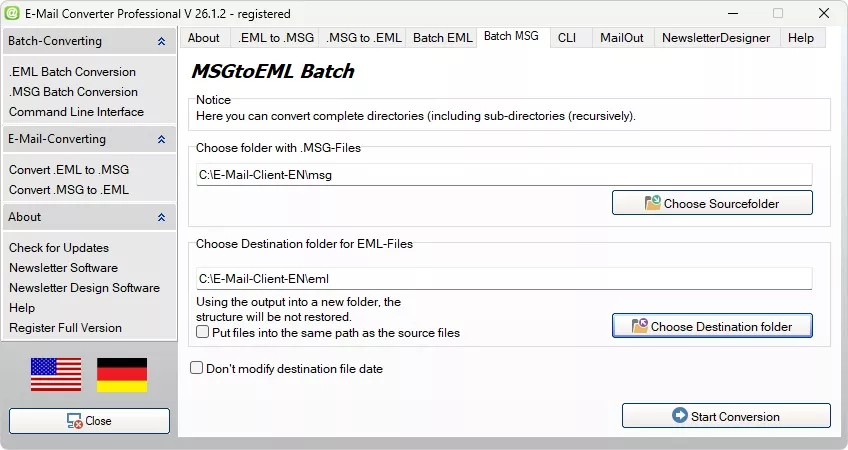
Batch mode is intended for larger MSG collections. Archives often contain many files arranged by customers, projects, years, departments, or cases. Processing every message manually takes time and increases the risk that files are skipped. With the Batch MSG to EML Converter, complete folder structures can be converted in one operation.
You select the source folder, the output folder, and the conversion direction. When subfolders are included, the existing structure can remain usable after conversion. This is important when folder names already contain context such as customer names, project numbers, departments, or archive years.
MSGtoEML Batch Converter with subfolder processing
Subfolder processing is relevant when an archive has already been sorted by topic, customer, project, or time period. Folder names often contain information that is not stored inside the email itself. Keeping that structure during conversion helps preserve the original context of the messages.Instead of selecting each MSG file separately, the batch function processes the chosen directory. The resulting EML files can then be checked, imported, or archived according to the existing filing logic. This is useful for migrations where the folder structure must remain understandable after the format change.
Batch MSG to EML Converter for larger email collections
A batch run is useful when exported mailboxes, old backups, or business correspondence contain many MSG files. Before starting, the source folder, output folder, included subfolders, and available storage space should be checked. This prevents incomplete output when large archives are processed.After conversion, selected EML files from different folders should be opened as a sample check. Attachments, subjects, sender data, dates, message text, and folder assignment can then be verified before the converted collection is used for import, migration, or long-term archiving.
Use MSGtoEML offline instead of an online converter
Online converters may be acceptable for uncritical test files. Business messages are different. They can contain contracts, customer data, invoices, internal notes, legal correspondence, or attachments that should not be uploaded to an unknown service. E-Mail Converter Professional processes MSG and EML files locally on the Windows PC.With web-based services, it is often unclear where files are processed, how long uploads remain stored, and whether attachments are deleted reliably. Local software keeps the conversion inside the user’s own working environment and is easier to align with internal data protection rules. For larger archives, local batch processing also avoids repeated uploads and browser-based file limits.
Confidential company emails should remain on company-owned systems during conversion. Contracts, client correspondence, legal records, and internal messages contain data that does not belong in an online converter. Local conversion keeps the files on your own computers or servers instead of sending them to third-party platforms. A secure local MSGtoEML converter lets teams convert MSG archives without leaving their infrastructure. Attachments, timestamps, sender details, and headers are preserved for audits, disputes, or internal records.
What happens to attachments, subject, and email headers?
For email conversion, the visible message text is only one part of the result. Subject, sender, recipient, sent date, received date, attachments, and relevant header data also matter when messages are later searched, audited, or imported. A test with typical MSG files is recommended before a large archive is converted.The first batch result should be checked with messages from different folders and use cases. This helps detect problems with unusual attachments, special characters, long subjects, or folder assignment early. After this check, larger collections can be processed with less risk of discovering structural issues later in the archive.
EMLtoMSG as an additional conversion direction
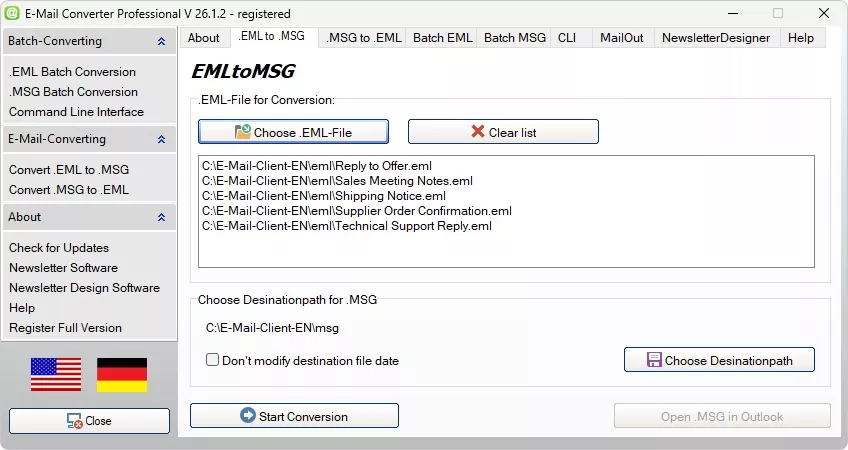
In addition to MSG to EML, E-Mail Converter Professional converts EML files into MSG files. This direction is needed when saved EML messages have to be placed into an Outlook-related filing system or exchanged with a process that expects MSG output. Individual EML files can be selected and saved as MSG files.
The reverse conversion is also available for folders. This is relevant for archives, backups, and message collections imported from other email programs. For most users, converting Outlook MSG files to EML remains the main task, while EMLtoMSG closes the gap for mixed environments.
Batch EMLtoMSG Converter for complete folders
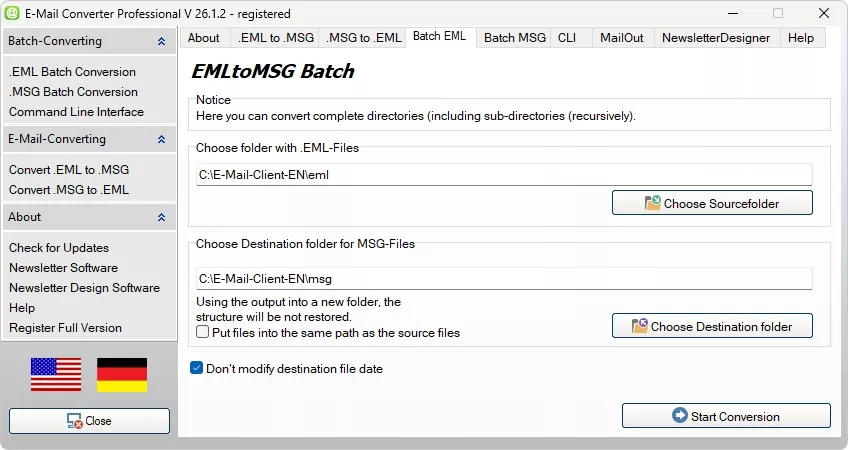
The Batch EMLtoMSG Converter processes EML collections from archive folders, backups, exports, or other mail programs. Instead of selecting each EML file manually, a source folder is defined. Included subfolders can be processed so the existing structure remains available for later assignment.
This direction is useful when EML archives need to be prepared for Outlook-oriented storage or a workflow that expects MSG files. After source and output folders are selected, the generated MSG files should be checked with sample messages from different subfolders. This confirms whether message content, attachments, and folder context are retained as required.
Command Line Interface Converter for automated workflows
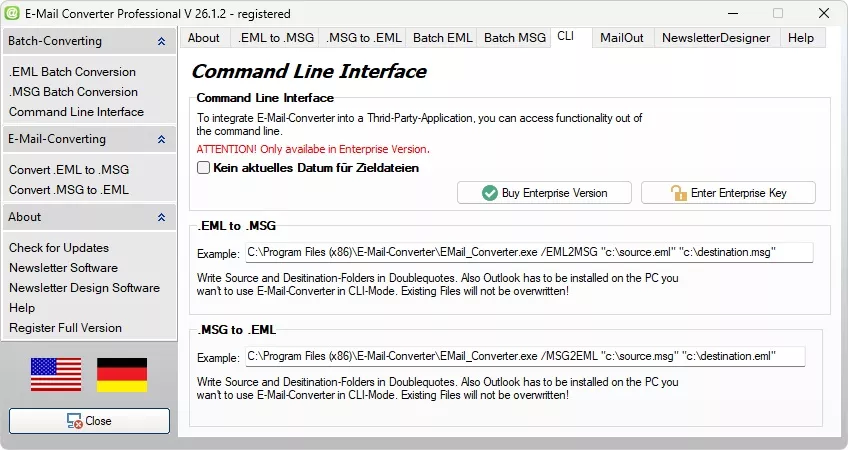
The Command Line Interface is intended for environments where conversion should be started without manual use of the program window. E-Mail Converter Professional can be called from scripts, scheduled tasks, archive routines, or internal applications. Source path, target path, and conversion direction can be supplied as parameters.
This is useful when a folder receives new MSG or EML files regularly. A script can start the converter after an export, during an archive run, or before another system imports the converted files. The command line option connects file conversion with existing technical processes and supports repeatable handling of saved email files.
Control MSG to EML Converter from other applications
External control is needed when MSG files have to be converted automatically as part of a larger process. Examples include archive software, administration tools, document workflows, and custom import systems. The calling application can start the converter once new files are available or a defined processing step has been reached.This reduces manual handling in recurring migration, archiving, and file-processing tasks. Combined with batch mode, complete directories can be converted without opening every message or selecting every file individually.
Integrate recurring conversions into scripts
Scripts are useful when email files have to be processed according to fixed rules. A prepared workflow can define the source folder, target folder, and conversion direction, then run whenever new files are ready. This is relevant for archive exports, regular data transfers, and automated preparation for import systems.Both directions can be included in such routines. MSG files can be written as EML for broader compatibility, while EML folders can be converted into MSG where Outlook-related storage is required. Clear folder naming and stable paths are important so automated runs keep source and output data separated.
System requirements and supported Outlook files
E-Mail Converter Professional supports saved Outlook files from Microsoft Outlook 2000 to Outlook 2024. This covers messages from older workstations as well as current Outlook environments. Users can convert individual MSG files or process folders with subfolders into EML format.The software is designed for Windows systems. For large archives, enough free disk space should be available because converted EML or MSG files are written in addition to the source files. Before a full run, a test with typical messages, attachments, and different subject lines helps verify the output.
Software development since 1994
E-Mail Converter Professional comes from a software company that has developed Windows applications since 1994. Long-term experience is relevant for file conversion because email archives often contain old formats, mixed folder structures, attachments, and data that must remain traceable after processing.The program focuses on practical conversion tasks: single files, batch runs with subfolders, and command line control for repeated jobs. These functions are relevant for companies, IT departments, and technical users who need reproducible handling of saved email files instead of manual file-by-file work.
Free download and test on Windows
E-Mail Converter Professional is available as a Windows download and can be tested with your own MSG and EML files. A test run with selected messages shows whether the body text, attachments, subject lines, dates, and folder structure are written in the expected form.For company use, the test should also check local processing, subfolder handling, batch speed, and command line integration. This helps evaluate whether the converter fits old archives, customer folders, project directories, or recurring internal workflows before larger collections are processed. Information about support, version status, and updates can then be considered before regular use.
Advantages of E-Mail Converter Professional at a glance
- Conversion of individual MSG files into the EML format
- Batch MSG to EML Converter for complete folders including subfolders
- Processing of large email collections, old archives, backups, and project folders
- Local processing on the Windows PC without uploading sensitive email files
- Preservation of existing folder structures for customer, project, and year folders
- Use for email archiving, data migration, import preparation, and sharing saved messages
- Command Line Interface for scripts, scheduled tasks, and external applications
- Support for Outlook files from Microsoft Outlook 2000 to Outlook 2024
- Additional reverse conversion from EML to MSG for Outlook-related filing systems
Comparison of the most important functions
| Function | Source format | Target format | Suitable for | Typical use |
|---|---|---|---|---|
| MSGtoEML | MSG | EML | Individual Outlook messages | Save a selected MSG file as an EML file |
| MSG to EML Converter | MSG | EML | Saved Outlook files | Prepare messages for sharing, backup, or import |
| Batch MSG to EML Converter | MSG | EML | Complete folders with subfolders | Convert structured Outlook archives to EML |
| Batch MSG to EML Converter | MSG | EML | Diverse email collections | Process customer folders, project folders, and backups |
| EMLtoMSG | EML | MSG | Individual EML files | Create MSG files for Outlook-related use |
| EML to MSG Converter | EML | MSG | Saved email files | Move messages into the MSG format |
| Batch EMLtoMSG Converter | EML | MSG | Complete EML folders | Convert archive collections into MSG files |
| Batch EML to MSG Converter | EML | MSG | Folder collections with subfolders | Prepare EML archives for Outlook-oriented storage |
| Command Line Interface | MSG or EML | EML or MSG | Scripts and external applications | Start conversions automatically with fixed paths |
Instructions: Convert email files with E-Mail Converter Professional
- Start E-Mail Converter Professional and select the required conversion direction.
- Use MSGtoEML or the MSG to EML Converter when Outlook MSG files should become EML files.
- Select EMLtoMSG or the EML to MSG Converter when EML files should be written as MSG files.
- Specify whether one file or a complete folder should be processed.
- For MSG folder collections, use the Batch MSG to EML Converter when many files should be converted at once.
- For EML folders, use the Batch EMLtoMSG Converter or the Batch EML to MSG Converter when many EML files should become MSG files.
- Select the source folder or the individual source file.
- For folder processing, check whether subfolders should be included.
- Specify the target folder in which the converted files will be saved.
- Start the conversion and wait until the process is complete.
- Open the target folder and check selected generated EML or MSG files.
- For recurring tasks, start the converter through the Command Line Interface from scripts or other applications.
FAQ about E-Mail Converter Professional
Does the MSG to EML Converter convert individual files?
A single MSG file can be selected and converted into an EML file. This is useful for saved Outlook messages that need to be opened outside Outlook, archived separately, or passed to another system as an individual email file.
Does the MSG to EML Converter process complete folders?
Complete folders can be processed in batch mode. This is useful for MSG collections from projects, customers, backups, or exported mailboxes where manual single-file conversion would be inefficient.
What does the Batch MSG to EML Converter do?
Batch mode converts many MSG files into EML files in one run. Instead of choosing every message separately, the user defines a source folder and an output folder. This is practical for larger archives and structured email collections.
Does the Batch MSG to EML Converter read subfolders?
Folders with subfolders can be included. This helps preserve the organization of archives that are sorted by customer, project, year, department, or case. The folder context remains easier to trace after conversion.
Does the EMLtoMSG Converter convert individual EML files?
The EMLtoMSG Converter creates an MSG file from a selected EML file. This is relevant when an individual saved message has to be used in an Outlook-related archive or workflow.
Is the EML to MSG Converter intended for Outlook files?
The EML to MSG Converter is used when EML files have to be moved into the MSG format. MSG is commonly associated with Outlook-based storage and processes that work with saved Outlook messages.
Does the Batch EMLtoMSG Converter process complete folders?
The Batch EMLtoMSG Converter processes folders containing many EML files. Source and output folders are selected once, then the contained messages are written as MSG files.
What does the Batch EML to MSG Converter do?
The Batch EML to MSG Converter is intended for EML archives, backups, exports, and folder collections. It reduces manual work when many EML files have to be prepared for MSG-based storage or Outlook-related processing.
What is the Command Line Interface intended for?
The Command Line Interface starts conversions through parameters instead of manual program operation. It can be used in scripts, scheduled tasks, archive runs, data transfers, and automated import preparation.
Does the converter start from other applications?
Other applications can start the converter through the Command Line Interface. This is useful when new files should be converted automatically as part of an internal workflow or recurring archive process.